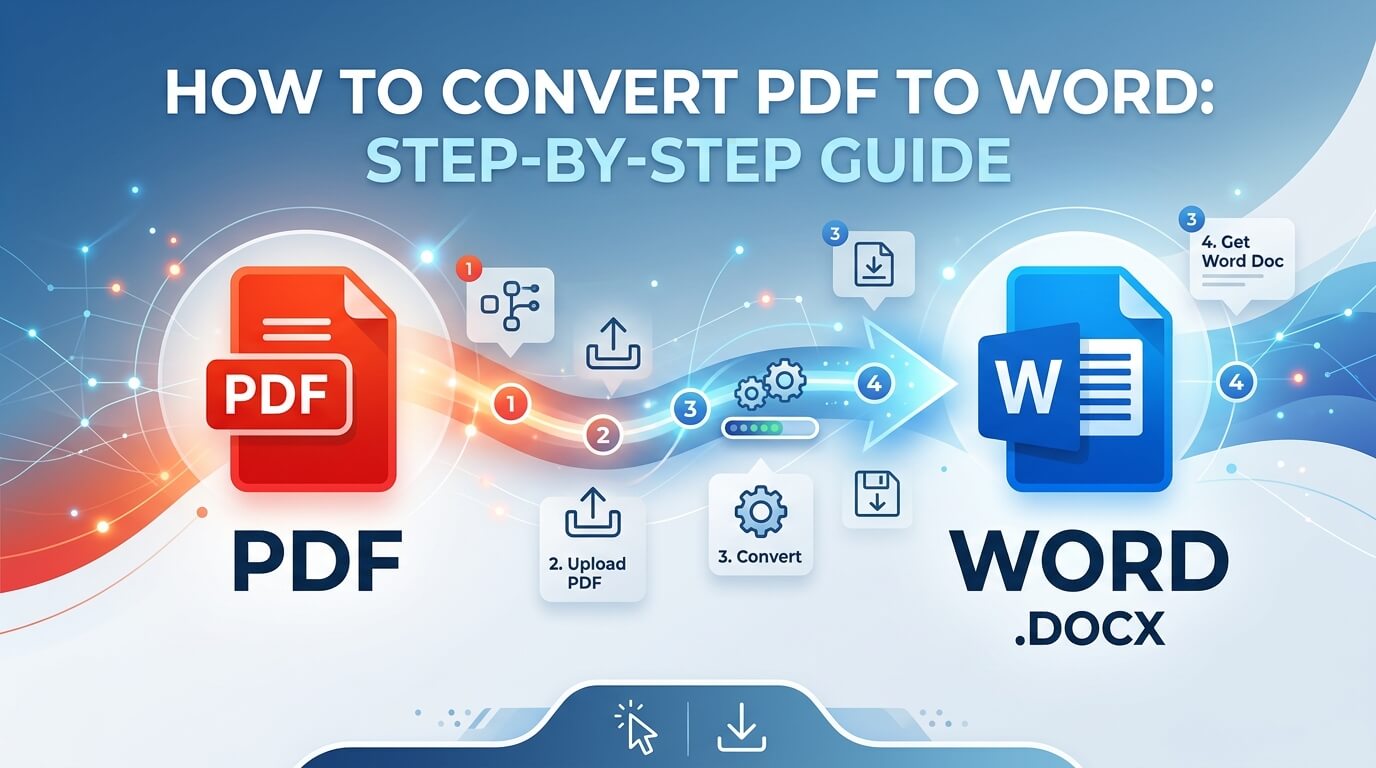
PDFs are great for sharing, but they can be difficult to edit. To update text, reuse content, or collaborate, convert a PDF to a Word file. This guide shows how to convert PDF to editable Word in simple steps. It explains what PDFs and Word files are, the value of converting, and the main tools to use, starting with Lumin.
Understanding the Basics of PDF and Word Formats
Before choosing a conversion method, it helps to understand how these file formats work.
What is a PDF?
A PDF (Portable Document Format) is designed to maintain layout and formatting consistency across all devices. People often use PDFs for:
- Contracts and agreements
- Forms and templates
- Official or final documents
Because PDFs lock content, editing them is difficult without the right tool.
What is a Word Document?
A Word document (DOC or DOCX) is made for editing. You can easily:
- Change text and formatting
- Add comments and tracked changes
- Reuse content in other files
This flexibility is why so many people convert PDF to Word files.
Why Convert PDF to Word?
Common reasons include:
- Updating existing content without starting from scratch
- Collaborating with others using track changes
- Reformatting text for reports, resumes, or proposals
In short, converting allows you to transform a fixed file into one that can be edited.
Methods to Convert PDF to Word
There are several methods for converting a PDF to Word, each suited to different needs. Online tools, such as Lumin, are typically the fastest for occasional tasks. Microsoft Word is convenient if you already use it, especially for text-based files. Online conversion sites offer quick solutions, but they vary in terms of privacy and formatting accuracy. Dedicated desktop software provides the most control, especially for frequent or complex conversions.
Using Lumin
Lumin is an online PDF editor that allows you to upload a PDF and convert PDF to editable Word document directly in your browser, making it easy to complete tasks.
Using Microsoft Word
Microsoft Word can open and convert PDFs to Word documents. This works best for simple, text-based PDFs.
Online Conversion Tools
Many websites allow you to convert PDF to Word editable documents online. These services are convenient and fast for small, simple files; however, conversion quality and privacy protections vary across platforms. They are less suitable for sensitive or highly formatted documents.
Dedicated PDF to Word Software
Desktop software gives more control over layout and formatting. These tools typically require a financial investment and are best suited for frequent or professional use.
Step-by-Step Guide to Convert PDF to Word
Below are clear, practical steps for each method.
Converting with Lumin
Lumin is ideal for easy, browser-based work.
Steps:
- Open the Lumin ‘PDF to Word’ page
- Upload your PDF file from your device or cloud storage
- Choose the option to convert the PDF to editable Word document
- Wait for the conversion to process
- Download the Word file and open it for editing
This method provides an editable Word file without requiring additional software.
Converting with Microsoft Word
Microsoft Word is suitable for basic conversions.
Steps:
- Open Microsoft Word
- Select File → Open and choose your PDF
- Confirm the prompt to convert the file
- Review the converted document
- Save it as a DOCX file
It is useful for text-heavy PDFs but may struggle with complex layouts.
Using Online Tools for Conversion
Online tools are convenient but require caution.
Steps:
- Upload your PDF to the tool’s website
- Select PDF to Word editable online conversion
- Download the converted Word file
Always check privacy policies before uploading sensitive documents.
Using Dedicated Software
Desktop tools give more control.
Steps:
- Install the software
- Import your PDF
- Select convert PDF to Word editable
- Adjust settings if needed
- Export the final Word document
Use this for large or complex documents.
Tips for a Successful Conversion
Not all PDFs convert cleanly. These tips help:
Maintaining Formatting
To keep layouts intact:
- Use clean, text-based PDFs when possible
- Avoid scanned documents unless OCR is supported
- Check headings, tables, and spacing after conversion
Even the best tools may need some cleanup.
Handling Images and Graphics
Images may shift during conversion.
Best practices include:
- Checking image placement after conversion
- Re-inserting images manually if needed
- Verifying captions and labels
This matters most for reports and presentations.
Dealing with Large Files
Large PDFs slow conversion.
To avoid issues:
- Split large PDFs into smaller sections
- Remove unnecessary pages before converting
- Use a stable internet when working with online tools
This prevents errors with PDF to Word editable online tools.
Troubleshooting Common Issues
If something appears to be incorrect, try these troubleshooting steps.
Text Misalignment
If text spacing looks off:
- Adjust margins in Word
- Reapply styles and headings
- Check for hidden line breaks
This is common with complex PDFs converted to Word files.
Missing Images or Graphics
If images are missing:
- Check whether the original PDF used embedded images
- Reinsert images manually
- Try a different conversion method
Some tools focus on text rather than visuals.
File Size Limitations
Some tools limit file size.
If you hit limits:
- Compress the PDF first
- Use desktop software instead of online tools
- Convert sections separately
This keeps the process smooth.
Final Thoughts
Converting PDF to editable Word is a straightforward process. The best method depends on your needs and editing plans.
For most tasks, Lumin converts PDFs to Word files quickly. For complex documents, use desktop software or Word.
Take a moment to review the final document before sharing or making any edits. Double-checking now saves time and guarantees your Word file is ready to use.